Show your images one after another on any page that has a content editor. These steps use the Home page; on another page, open that page instead.
A new website already has a slide show on its Home page, a special image that says "This special image will be replaced by a slide show of all works in all of your galleries." If it is still there, you have a slide show and can skip to choosing its images or changing its size. To add one somewhere else, or to put it back after deleting it:
Open Home in the Pages menu, then click in the Home Content editor where the slide show should go. Select the Image button in the toolbar.
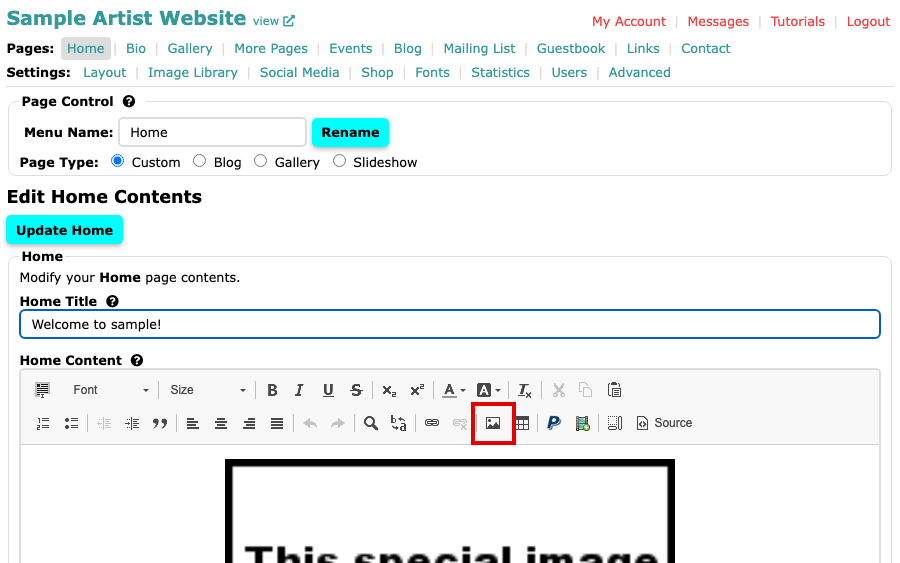
The Home page in the admin, with the content editor and its Image button below Home Content 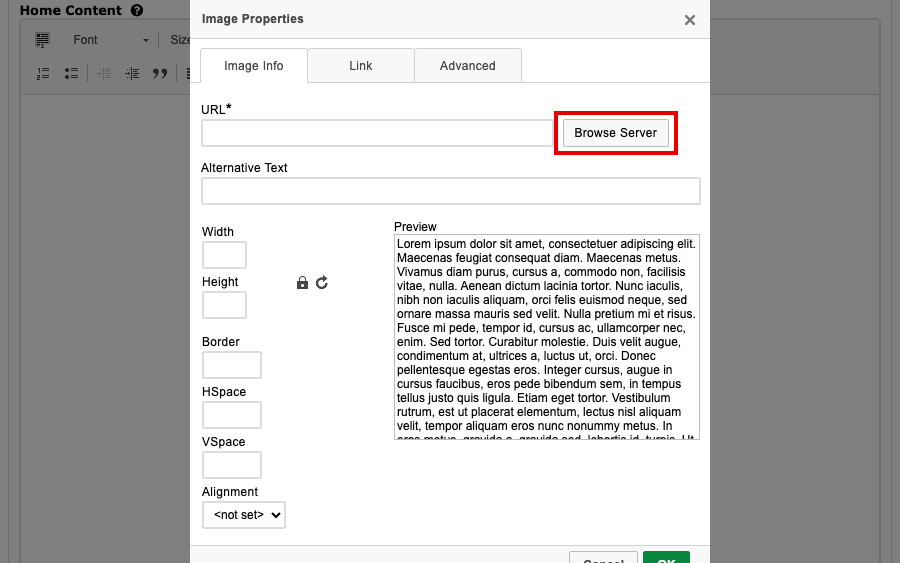
The Image Properties box, with an empty URL box and a Browse Server button beside it Select Browse Server. A window called Image Browser opens. Select Slide Show, the first picture at the top left, which is not one of your own images.
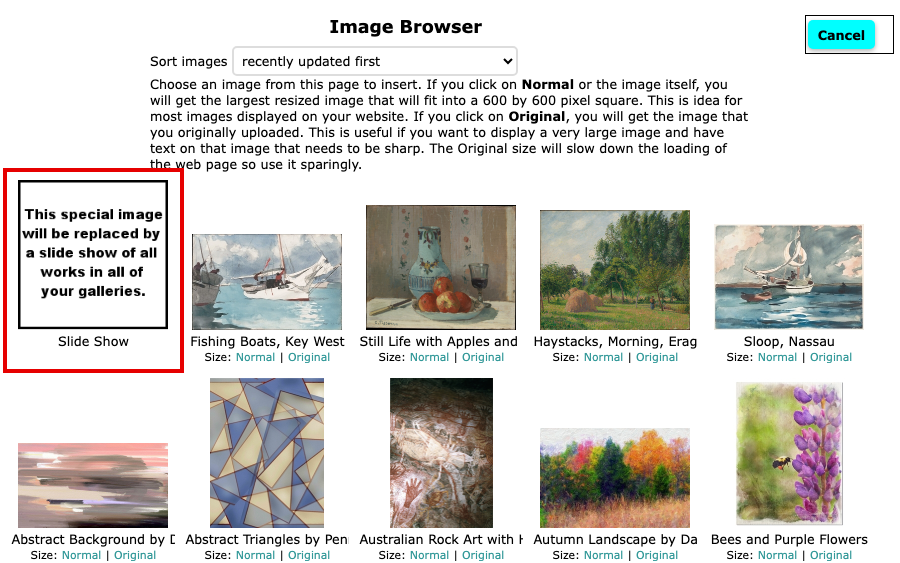
The Image Browser, with the Slide Show picture first and your images after it Select OK, and the slide show appears in the editor as that same special picture. Then select Update Home at the top or bottom of the page. Your change is not kept until you do. The button carries the name of the page you are on.
Open your website to see it. The slide show changes image every few seconds.
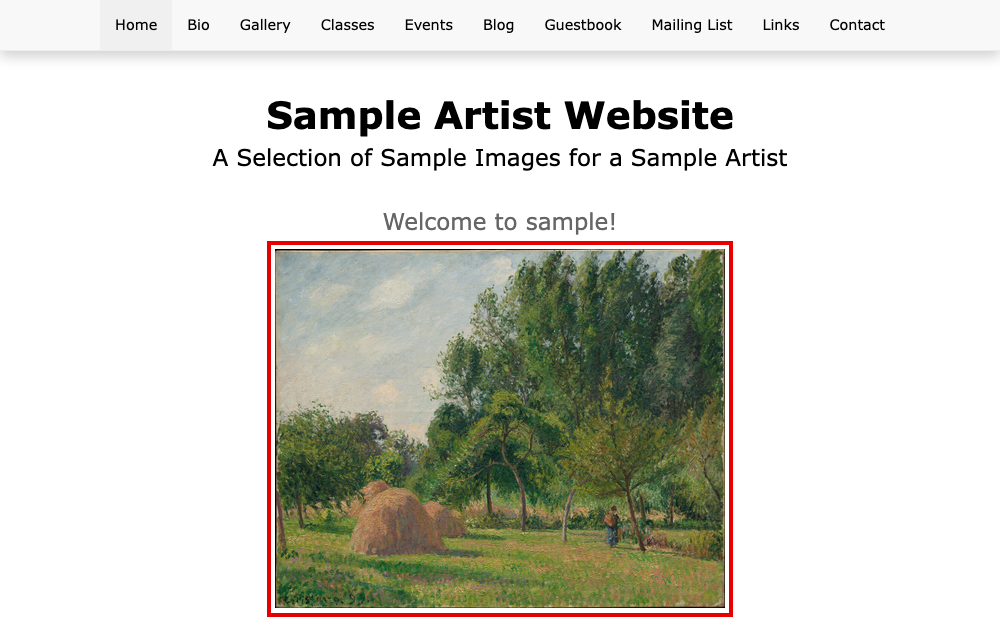
The home page of the website, with a slide show showing one of the images
Until you choose otherwise, a slide show shows every image in every gallery that is not hidden, in a random order. On a Basic plan it shows only the images in your first gallery. Choose the Images and Order of a Slide Show shows how to pick your own, and Change the Size and Position of a Slide Show how to make it bigger or smaller.