Choose which galleries an image appears in. An image can be in several galleries at once, and you can change them whenever you like.
Open Image Library in the Settings menu at the top of your admin.
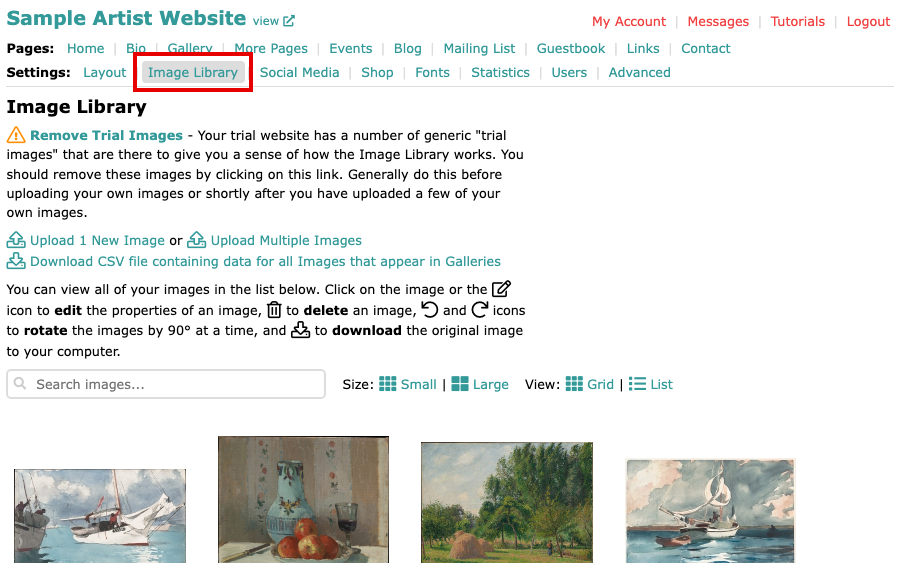
The Image Library page with Image Library selected in the Settings menu Select the edit icon under the image, or select the image itself.
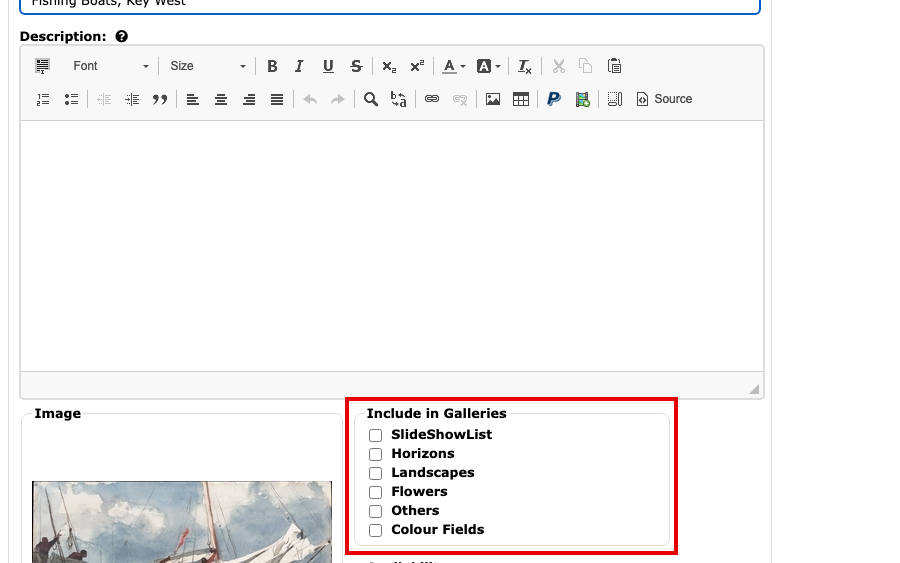
The Edit Image page for Fishing Boats, Key West, with Include in Galleries below the Description box Under Include in Galleries, tick the galleries you want the image to be in, and untick any you want it to leave. Ticking a gallery adds the image to it; unticking removes it from that gallery only. To move an image from one gallery to another, tick the new gallery and untick the old one.
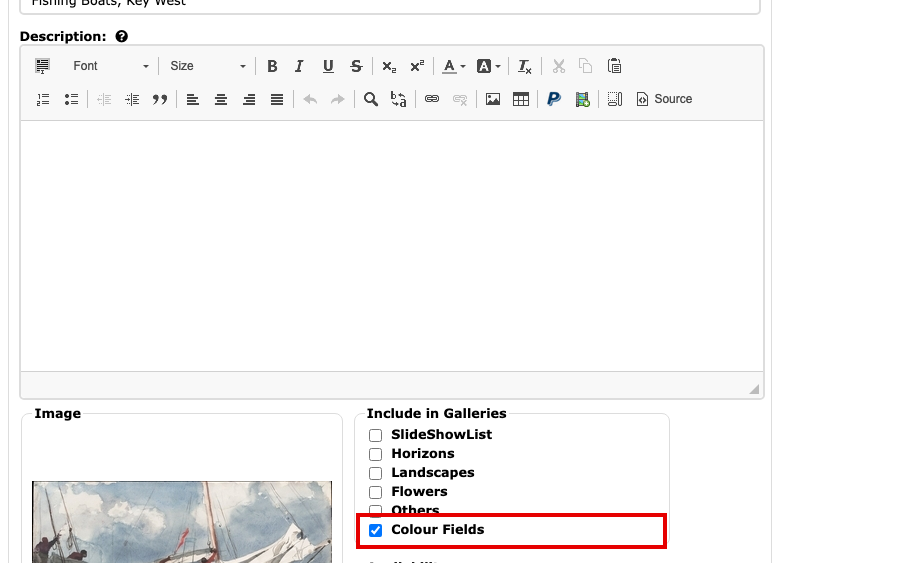
The Include in Galleries list with Colour Fields ticked 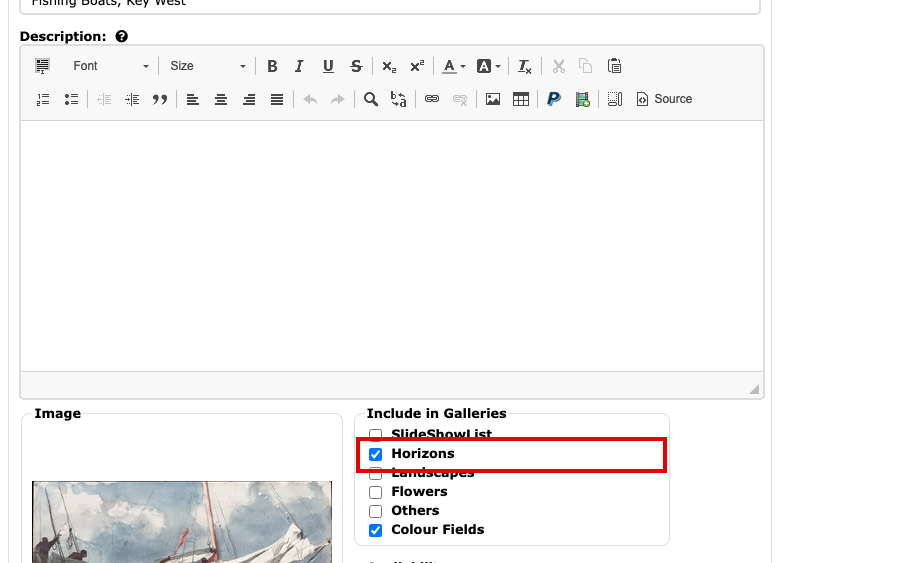
The Include in Galleries list with Colour Fields and Horizons ticked Select Update Image. The button is at the top and at the bottom of the page. Your changes are not kept until you do.
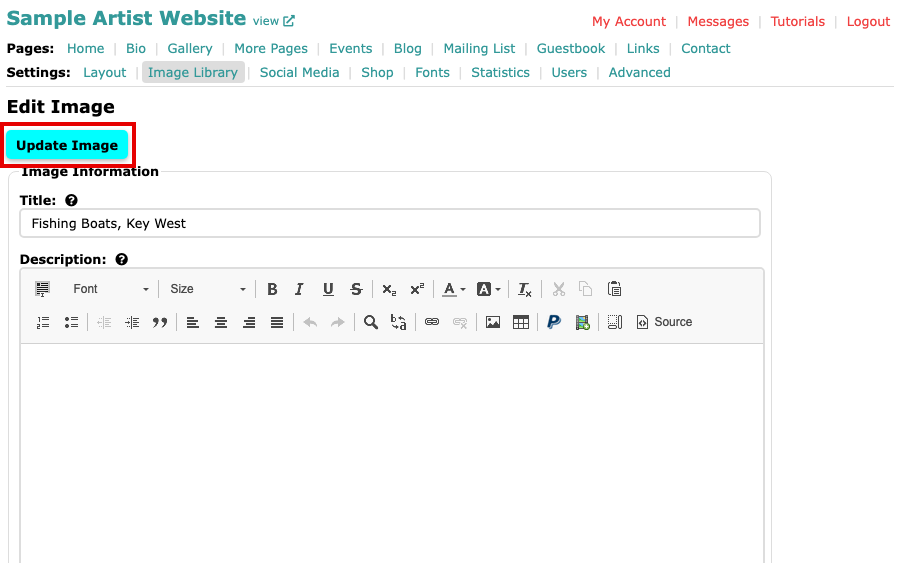
The Update Image button at the top of the Edit Image page 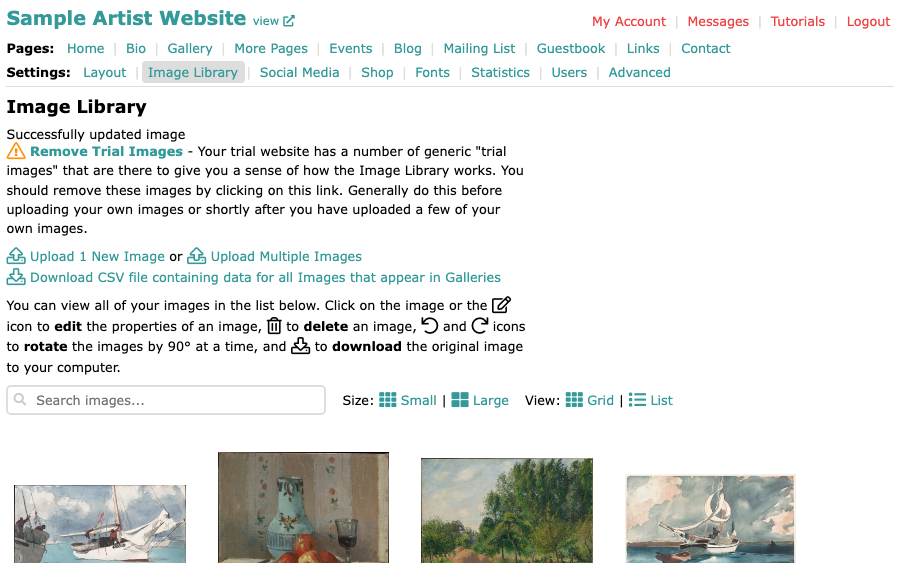
The Image Library with Successfully updated image above the images
The Image Library shows Successfully updated image, and the image is now in the galleries you ticked. An image you add to a gallery goes to the top of it; Change the Order of Images in a Gallery shows how to put it elsewhere.