Add a page to your website for anything the standard pages do not cover, such as the classes you teach, reviews of your work or your process.
Before you start: sign in to your website's admin. Some plans show a shorter menu without More Pages; our pricing page has the plans.
Open More Pages in the Pages menu. If you have no extra pages yet, the New Page form opens straight away.
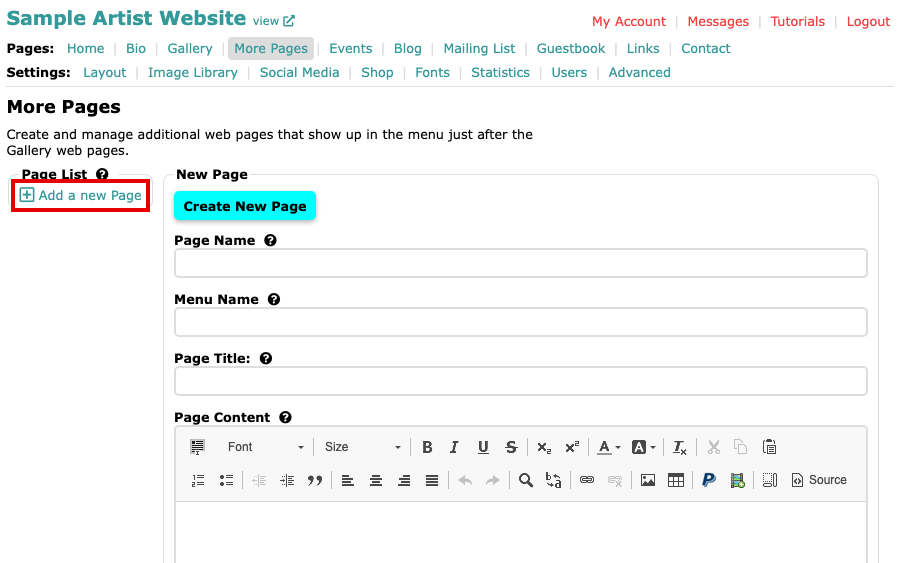
The More Pages screen with an empty New Page form and Add a new Page under Page List Select Add a new Page under Page List.
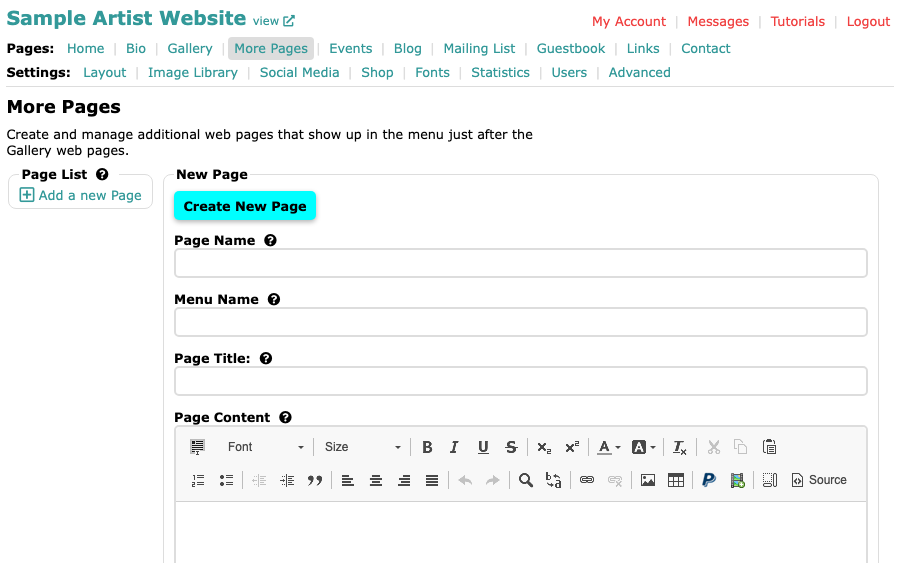
The New Page form with Page Name, Menu Name, Page Title and Page Content Type a Page Name. It becomes the last part of the page's web address,
/page/followed by the name, so choose words that describe the page. Spaces and punctuation turn into underscores, and the name can be up to 48 characters.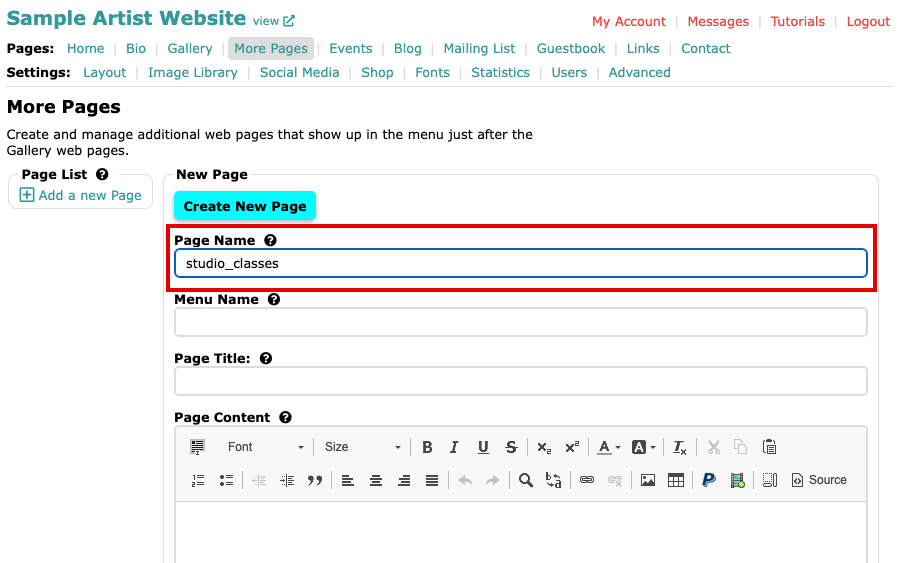
The Page Name field with studio_classes typed in Type a Menu Name to show the page in your website's menu. Leave it empty for a hidden page that people reach only by its address or a link you give them.
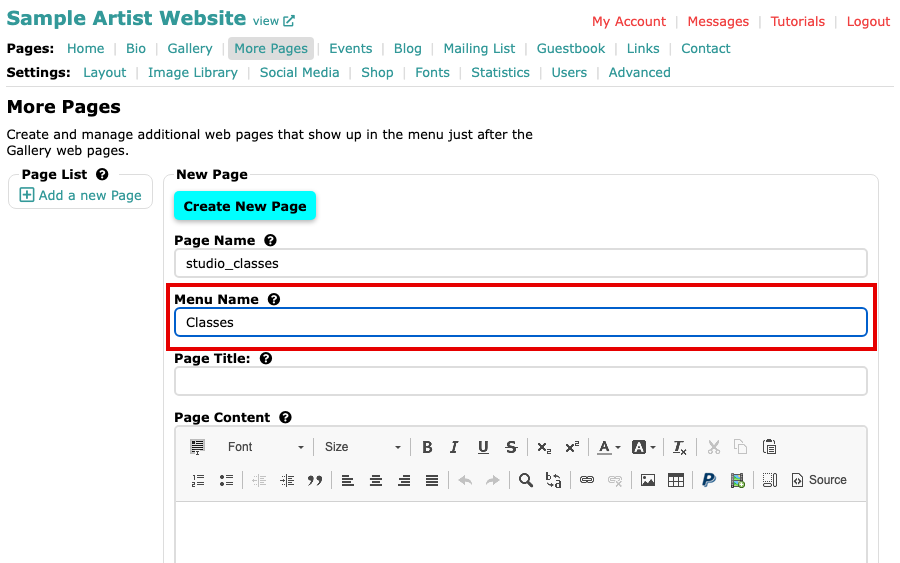
The Menu Name field with Classes typed in Type a Page Title. It shows above your text and in the browser's title bar, so a clear title also helps search engines.
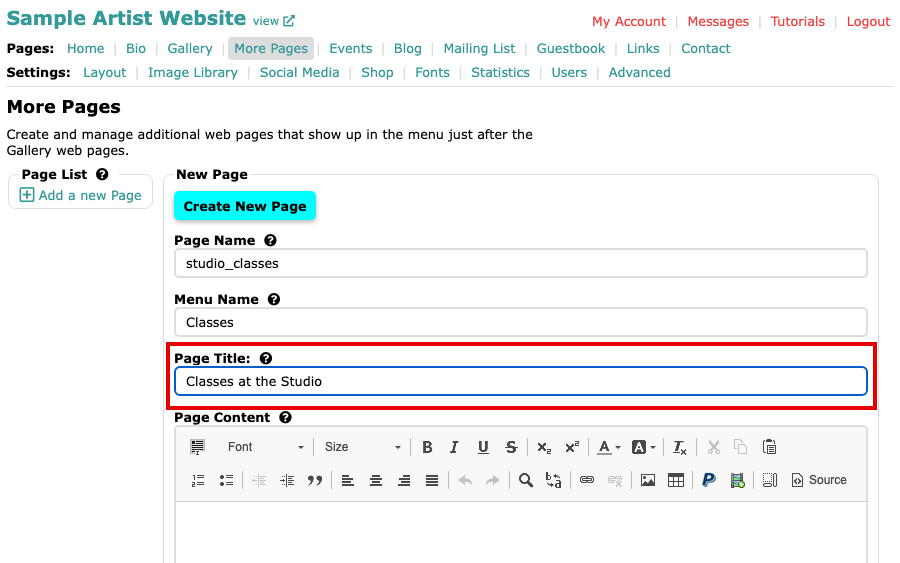
The Page Title field with Classes at the Studio typed in Click in Page Content and write your page. The content editor is the same one you use everywhere else.
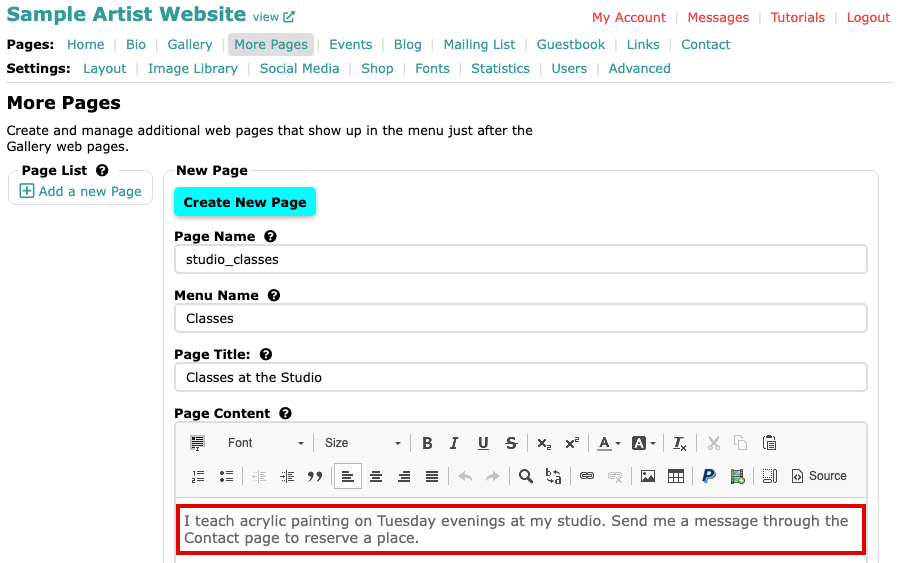
The Page Content box with the page's text typed in Select Create New Page. The screen says Page created, and the page appears in the Page List.
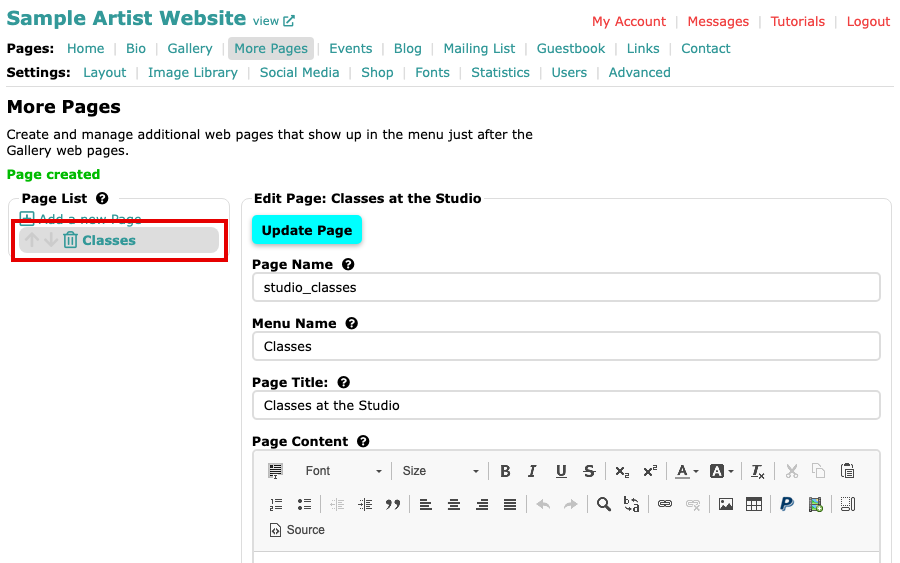
The Edit Page screen with Page created above the Page List, which now shows the new page Select view at the top left of the admin to see your website, then the new page in its menu.
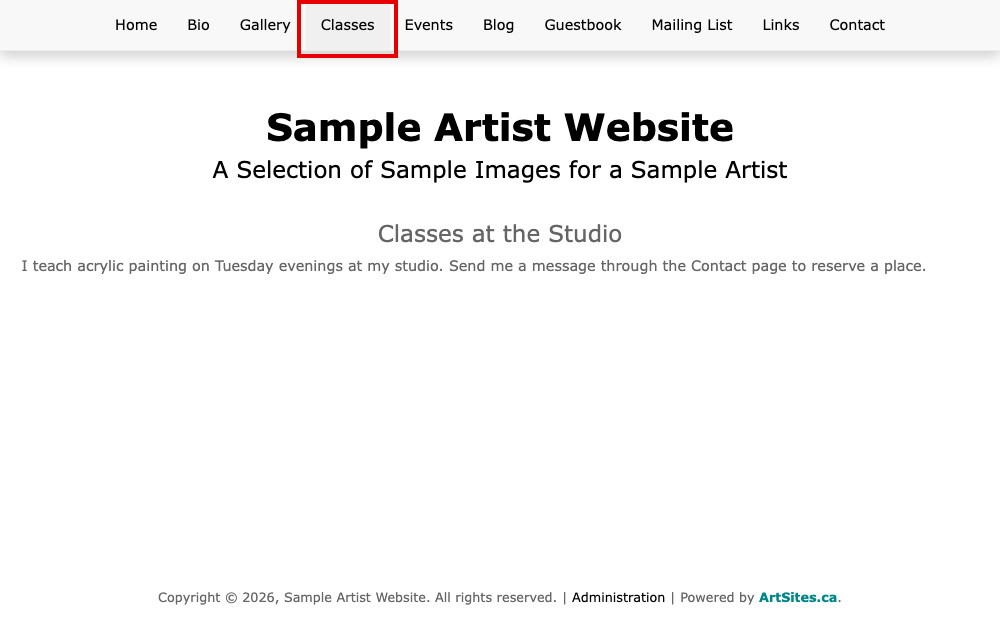
The new page on the website, with Classes in the menu and the page title above the text
Your page is on your website, in the menu after your galleries. To change, reorder or delete it, see Change, Reorder and Delete Your More Pages.