Two settings on the Social Media page put a button on your works for visitors to use: Facebook Share Button and PinIt Button On Images. They are separate from the icons that link to your own social media pages, which Add Social Media Links to Your Website covers. This page turns on Facebook Share Button as the example.
Open Social Media in the Settings menu at the top of your admin. Facebook Share Button is under Facebook.
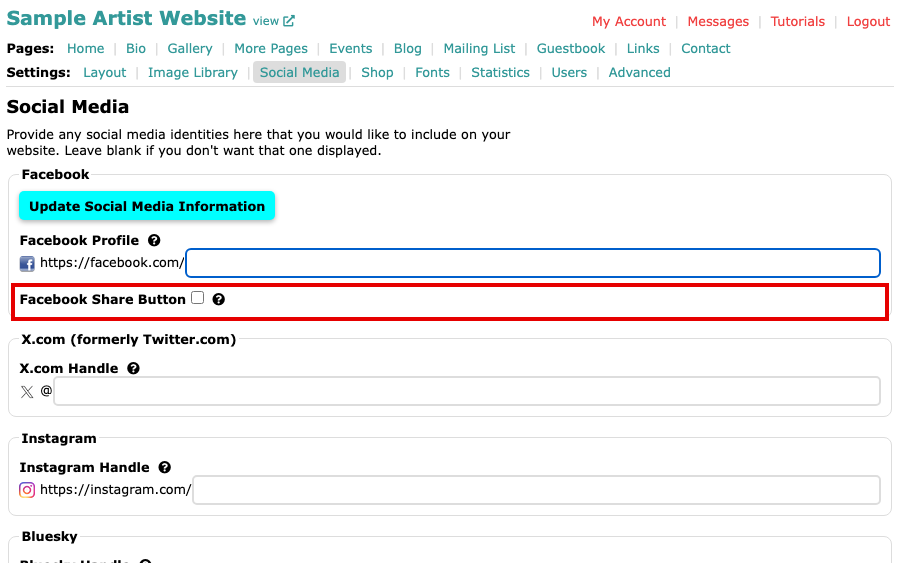
The Social Media page, with Facebook Share Button unticked under Facebook Scroll down to Pinterest to find PinIt Button On Images. Each setting has a help icon beside it that explains it.
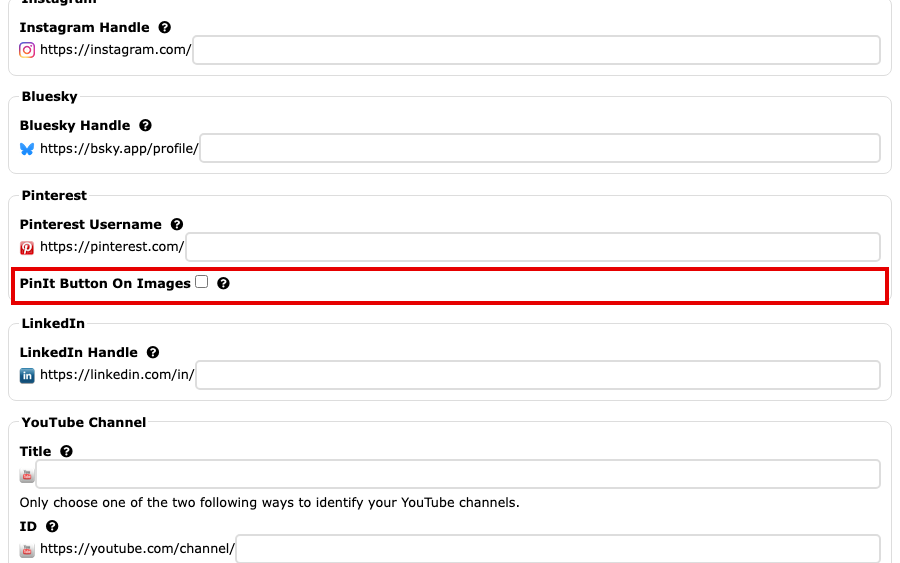
The Pinterest section of the Social Media page, with PinIt Button On Images unticked Tick Facebook Share Button.
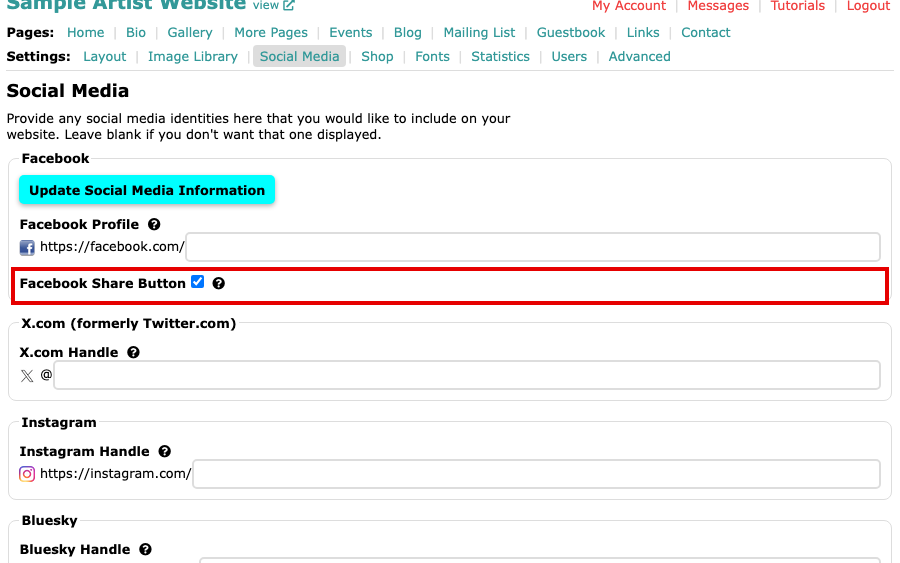
Facebook Share Button ticked Select Update Social Media Information to save. The button is at the top and at the bottom of the page.
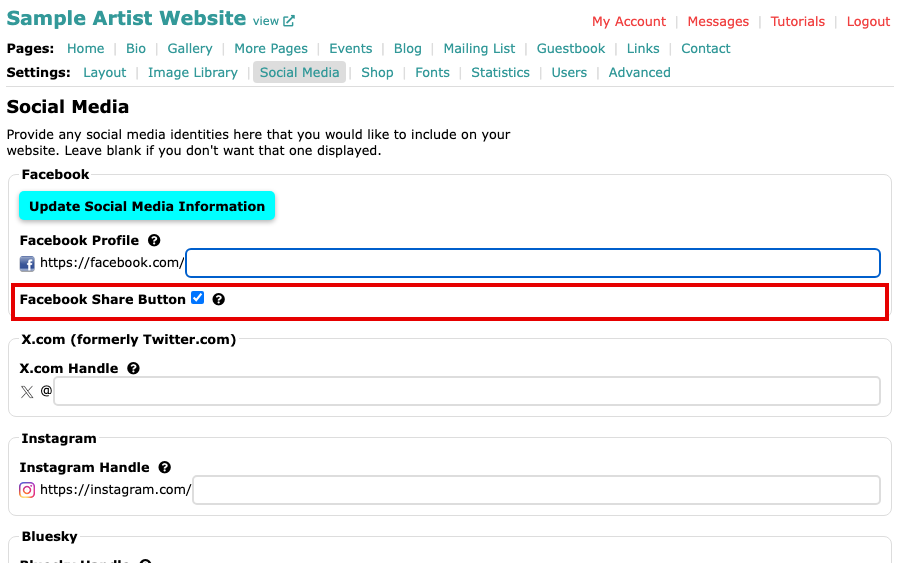
The Social Media page after saving, with Facebook Share Button still ticked Open one of your works on your website. A Share link with the Facebook logo sits below the work. A visitor who selects it goes to Facebook to share that page, and Facebook is contacted only when they do.
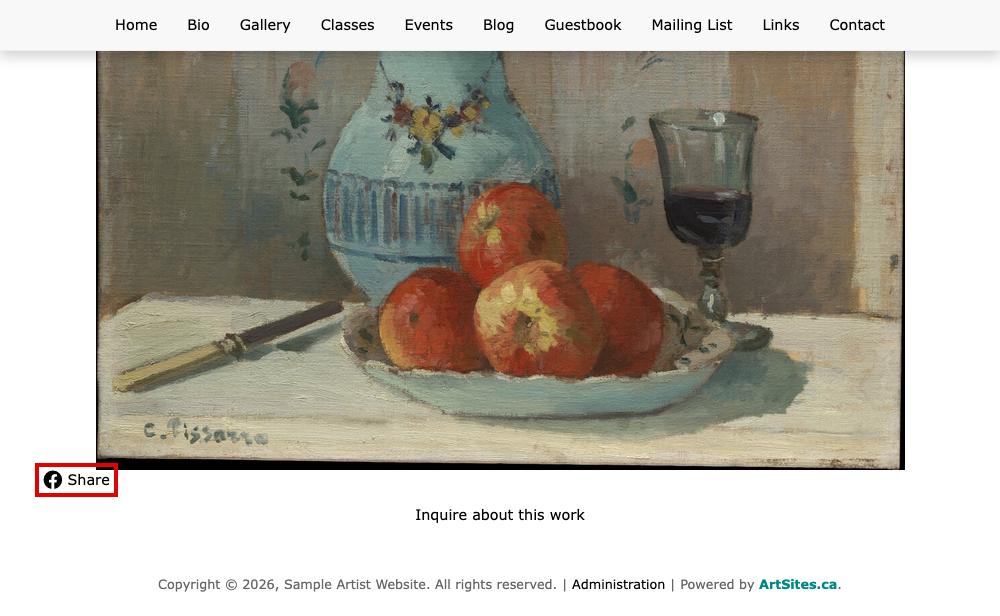
A work's page with a Share link below the image
To turn a button off, untick it and save again.
What the two settings do
- Facebook Share Button: adds the Share link below each work. It replaces the separate Facebook Like Button setting, which showed the same link. If you had either one ticked before, Facebook Share Button is ticked now and your works keep their Share link.
- PinIt Button On Images: puts a Pin It button on most images on your website, so a visitor can save one to Pinterest. Very small images do not get one.
The Share link appears on the page for a single work. Some layouts do not show it, so if you tick the box and see nothing, your layout is the reason.